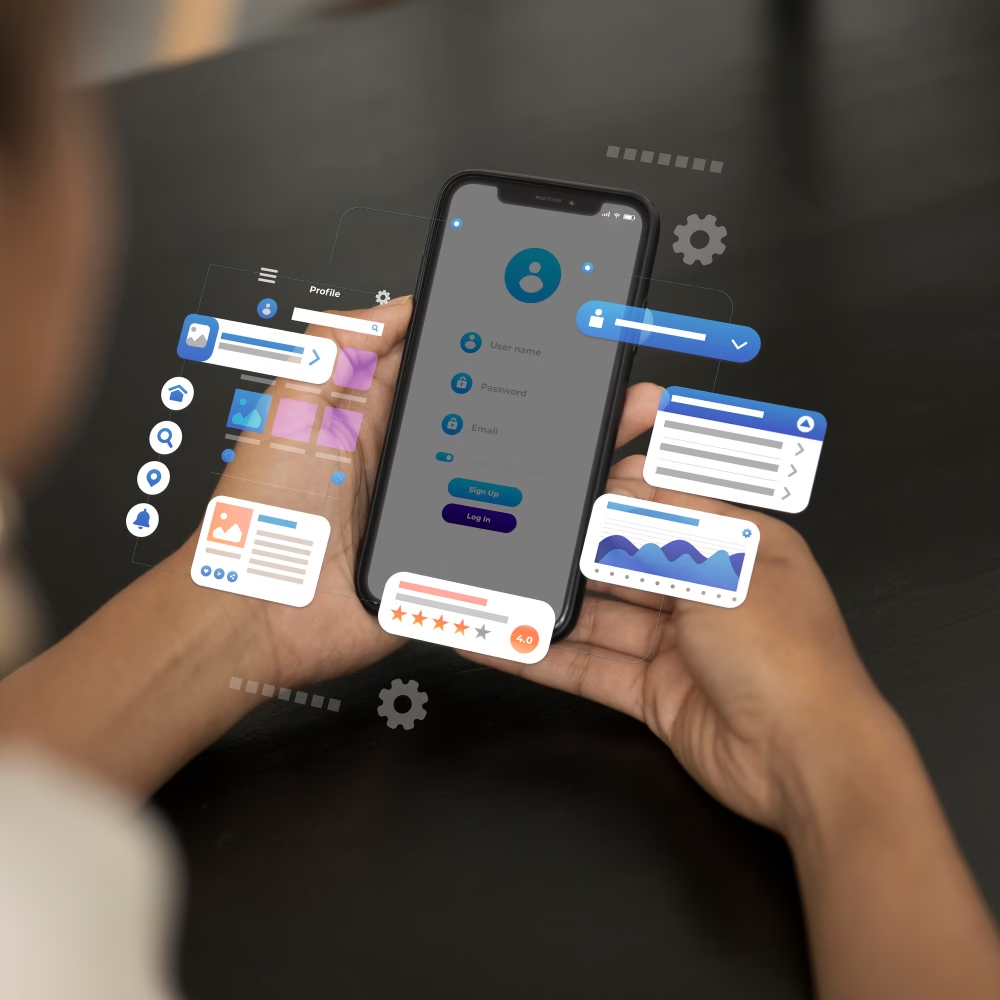
Digital products rely on user actions. Each click, swipe, or tap leads to a result. It affects whether a purchase is completed or the app is closed.
The user interface guides these actions. Controls how people move through a product. A clear layout helps tasks get done faster.
Small details affect results. A slow button or unclear menu can stop progress. A simple and clear screen helps users keep going.
Types of User Interface
Here are some primary types of user interface. Each is defined by its use and interaction method.
1- Graphical User Interface (GUI)
A graphical user interface uses icons and button pictures. A mouse click opens files. A drag moves items. Windows, macOS, iOS, and Android all work this way. Layout, spacing, and color guide each next step.
2- Command-Line Interface (CLI)
Users enter commands in a terminal or console. It gives direct control over the system or application. Developers, system admins, and advanced users use it most.
It runs repeated tasks fast but needs time to learn.
3- Menu-Driven Interface
This interface shows options as menus on a screen. It appears in ATMs, kiosks, car systems, and older phones. Users select choices using numbers, keys, arrows, or touch.
All available options stay visible on the screen, which reduces the need to remember steps and keeps selection simple.
4- Touch User Interface
This interface responds to direct touch on the screen using fingers or a stylus. Users control the interface with gestures like tap, swipe, pinch, rotate, and long press.
It is common on smartphones, tablets, and touch screens. Large touch targets reduce mistakes and help people complete tasks with ease.
5- Voice User Interface (VUI)
This interface lets users control software using voice. It listens and understands commands by using speech recognition and language processing.
It is used in tools like Siri, Google Assistant, and Alexa. Users do not need to touch the screen. It works best when speech is clear and direct.
6- Form-Based Interface
This interface uses structured forms with fields, checkboxes, radio buttons, and dropdowns. Users enter or select data and then submit it for processing.
It is common in online applications, data entry systems, and databases. It supports accurate data collection with fewer errors.
7- Natural Language Interface
This interface accepts human language input through typing or speech. It does not rely on strict command syntax. It reads intent, context, and natural flow of conversation.
It is used in chatbots, virtual assistants, and customer service systems. It depends on natural language understanding to handle unclear input.
8- Mobile User Interface
This interface is built for small screens and touch use. It changes layout, text size, spacing, and navigation for mobile devices. It uses features like GPS, camera, sensors, and notifications. It keeps tasks simple for quick thumb use.
How It Works: The UI Design Step-by-Step Process

UI design starts with a question: what does the user actually need? Every step in the process builds toward answering that question in a clear, structured way.
Step 1: Research and Discovery
User research uses surveys, interviews, and competitor reviews. No design happens here. The goal is to understand user needs and problems. Skipping this step means designing on guesses, not real data.
Step 2: Define Goals and Structure
Research turns into clear design objectives. Stakeholders agree on what success looks like and who the product serves. Every design decision later traces back to this agreed direction.
Step 3: Sketching and Wireframing
Rough sketches allow cheap changes. Wireframes are black and white blueprints showing structure only. Tools like Balsamiq or Sketch work here. No colors or final visuals yet.
Step 4: Visual Design and Mockups
Mockups are high-fidelity static renders. They show the real color palette, typography, and icons. Layout and spacing guide attention toward the right action.
Step 5: Prototyping
Prototyping adds interactions and transitions to static screens. A working prototype lets teams test the look and feel before writing code. This reduces expensive fixes later.
Step 6: Usability Testing
Real users try the prototype. Observe where they click, pause, or make errors. Fix problems before launch. Testing with five users finds most major issues.
Step 7: Developer Handoff and Launch
Design files and assets go to developers. Include specs, spacing, and colors. Developers build the product. Launch after final testing. A smooth handoff prevents delays.
Step 8: Iteration After Launch
Track how users behave after launch. Collect feedback and analytics. Fix what does not work. Design never stops. Small updates improve the product over time.
8 Design Mistakes That Break User Interfaces
Bad UI design services follow common patterns. These mistakes make users leave or struggle with tasks. Knowing them helps improve design quality.
1- Cluttered Screens Overwhelm the Brain
Too many elements on one screen create confusion. Users cannot focus or find what they need. This leads to higher drop-off rates. Clean screens with space between elements work better.
2- Hidden Navigation Frustrates Users
Menus should be easy to find. Hidden or unclear icons make users search and guess. This slows down tasks. Clear navigation helps users move without confusion.
3- Broken Layouts Across Devices
Some interfaces work on desktop but fail on mobile. This creates a poor experience on smaller screens. Responsive design avoids this problem. Every screen size needs a working layout.
4- Inconsistent Buttons and Labels
A button labeled “Submit” on one page should not say “Go” on another. Inconsistent design language breaks user trust. Keep labels, colors, and placements the same across all screens.
5- Small Touch Targets Cause Errors
Buttons smaller than 48 pixels on mobile devices lead to accidental taps. Thumbs need space to press. Make tap targets large enough. Users should not struggle to click.
6- No Feedback After User Actions
Did the click work? Is the form saving? Without visual or text feedback, users get confused. Show loading states and confirmation messages. Every action needs a clear response.
7- Low Contrast Makes Text Unreadable
Gray text on a light gray background strains the eyes. Poor contrast remains the most common accessibility violation. Use dark text on light backgrounds. Ensure readability for everyone.
Final Thoughts
User interfaces mean shaping how people use digital products. Clear UI design principles help users complete tasks faster.
Poor design creates confusion and slows work. Knowing UI meaning, types, and core principles improves design decisions.
Research shows UI system quality affects user behavior. Small changes in layout, navigation, and clarity reduce errors and improve task completion. This leads to fewer drop-offs and higher engagement.
Businesses treat UI design as part of product strategy. It affects the first user interaction and long-term use.